#Use LLMs within BigQuery
BigQuery now has the capability to perform Language Learning Models (LLM) tasks on data hosted in a BigQuery table. Vertex AI provides several LLMs that can be queried directly from BigQuery. In this tutorial, we will see how to request a rating from Gemini on sample restaurant reviews, using only SQL queries.
Set up the BigQuery connection to Vertex
Before working on your data, you need to set up an external connection in BigQuery to Vertex AI. This is not the interesting part, and it’s not very intuitive, but once it’s done you won’t have to worry about it anymore.
- Make note of the region (
usoreu, for example) of the BigQuery dataset hosting the data that will be processed. - For your GCP project, make sure that the following API are enabled: BigQuery API, Vertex AI API, BigQuery Connection API.
- Create the external connection:
- Click *+ADD *in the Explorer left pane
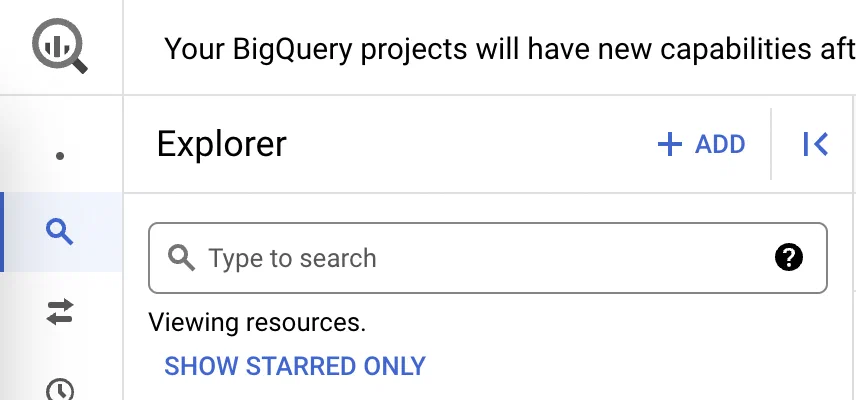
- Select Connection to external data sources.
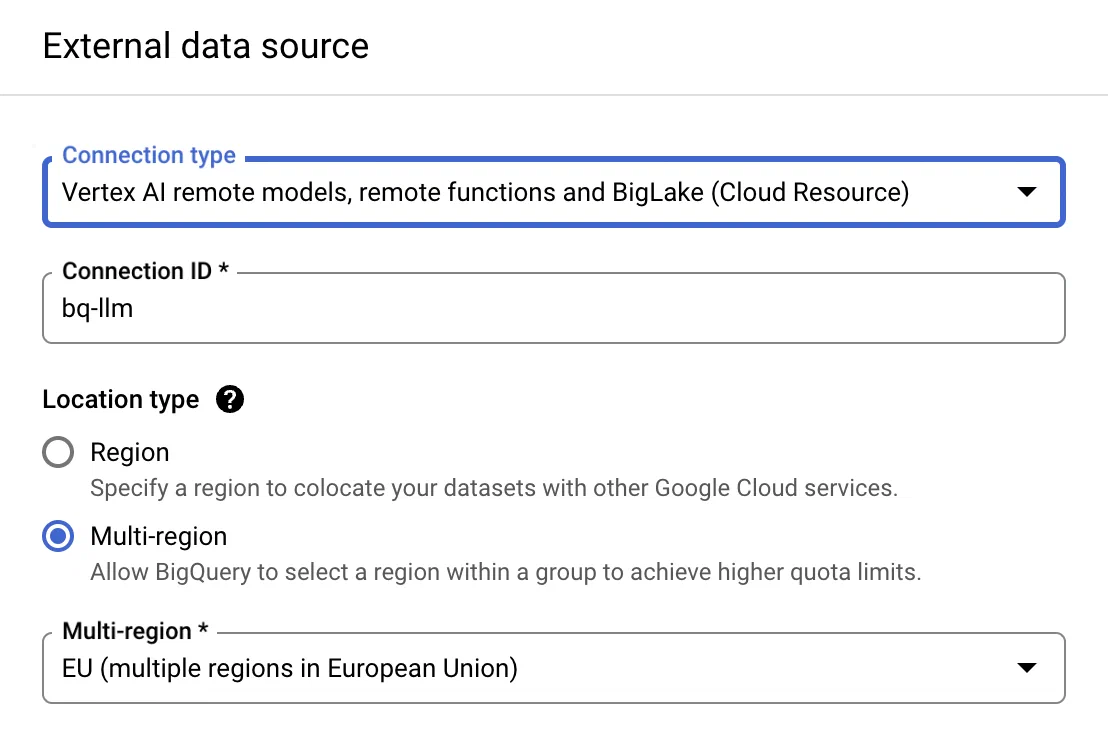
- Fill in the appropriate fields:
- In the Connection type dropdown menu, select Vertex AI remote models, remote functions and BigLake (Cloud Resource).
- In Location type, select the same region than your dataset location.
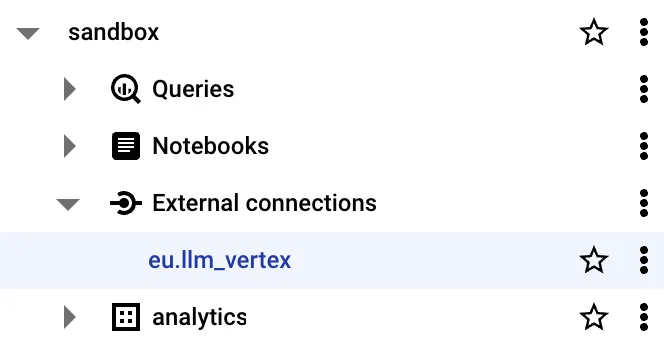
- You should see the connection appear under the External Connections section of the left pane:
- Once the connection is created, make a note of the Service Account generated from the connection configuration details.
- In the IAM & Admin section of the GCP Console, grant permissions to this service account to access the Vertex AI Service: add it as Principal and select Vertex AI User role.
Now, you're ready to proceed to the interesting part.
Create a BigQuery model
Using a LLM model in BigQuery implies creating a BigQuery ML model, like for time series forecasting, for example. A number of models are available in the Vertex AI library.
For example, the below query creates a BigQuery model based on Gemini:
bq_llm.llm_modelis the name of the dataset and desired model nameeu.llm_vertexis the name of the external connection we just createdgemini-prowill use a Gemini endpoint
CREATE OR REPLACE MODEL bq_llm.llm_model
  REMOTE WITH CONNECTION `eu.llm_vertex`
	OPTIONS (endpoint = 'gemini-pro');
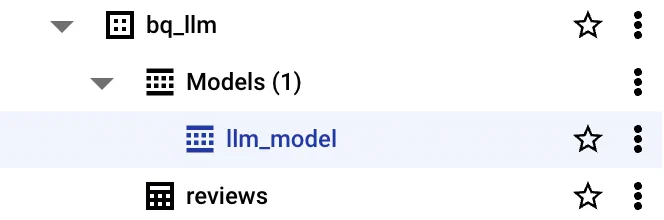
After a few seconds, you should see the model listed in your dataset:
Query the model on your data
In this example, I’m using table bq_llm.restaurant_reviews that contains sample restaurant reviews.
I want the LLM to grade the sentiment of each review between 0 and 5. In order to do that, I concatenate the following prompt:
Grade the sentiment of this restaurant review from 0 to 5. Just return the grade, nothing else. Here is the review: with the content of each review, which is in column review of the restaurants review table.
The statement for generating text in BigQuery from a model is ML.GENERATE_TEXT.
Some of the useful parameters are:
temperaturefor the degree of randomness, between 0 and 1max_output_tokensfor the maximum number of tokens output by the modelflatten_json_outputfor flattening the results of the secondary columns
Here is the full query:
SELECT *
FROM
  ML.GENERATE_TEXT(
    MODEL `bq_llm.llm_model`,
    (
		  SELECT
        CONCAT('Grade the sentiment of this restaurant review from 0 to 5. Just return the grade, nothing else. Here is the review: ', review) AS prompt
      FROM `bq_llm.restaurant_reviews`
      LIMIT 10
    ),
    STRUCT(
      0.2 AS temperature,
      100 AS max_output_tokens,
      TRUE AS flatten_json_output
    )
	);
This returns a table with:
ml_generate_text_llm_result: the generated textprompt: the initial promptml_generate_text_rai_result: contains some safety attributesml_generate_text_status: response status, empty if the operation was successful
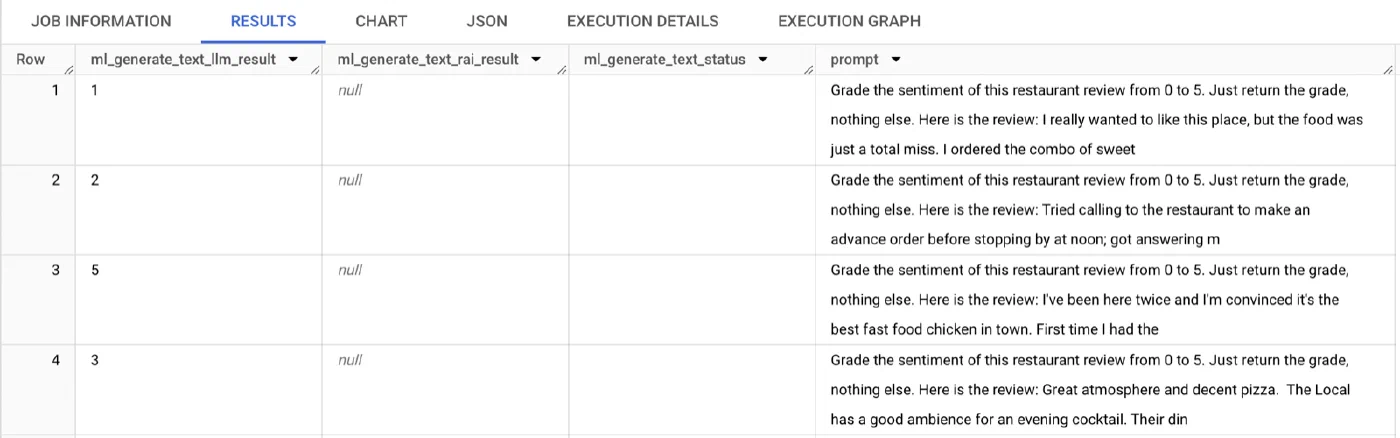
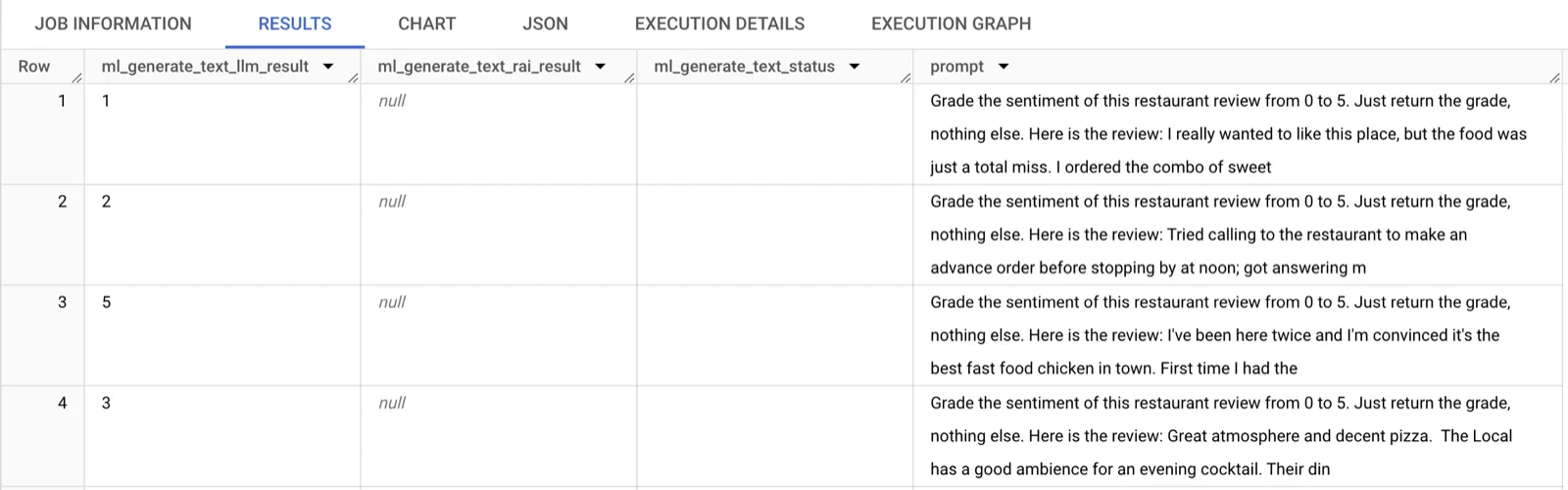
And as expected, in each row Gemini returned a grade between 0 and 5 about the sentiment of the review.